Step 1: WoWUp.io
Download and install WoWUp.io which can be found at:
https://wowup.io/
Step 2: Personal Access Token
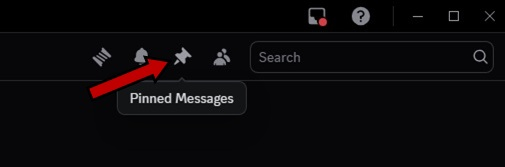
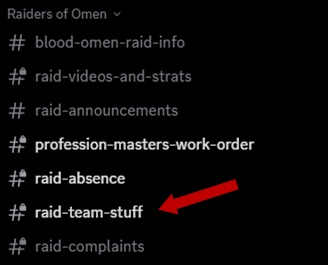
In the Blood Omen Discord, navigate to the Raid-Team-Stuff chat channel and open the pinned messages by clicking the pin in the upper right hand corner.
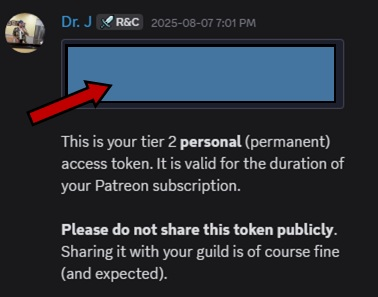
In the pinned messages you will see one from Dr. J that contains a github URL. Copy this code to your clipboard.
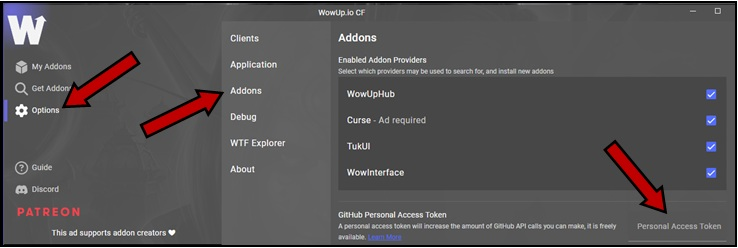
Open the WoWUp app. Click on “Options”, then “Addons” and paste the URL into the Personal Access Token field.
Step 3: Installing AuraUpdater and TimelineReminders
Head back to the Blood Omen Discord, navigate to the Raid-Team-Stuff chat channel and open the pinned messages again. At the bottom of the message we used in Step 2, there are 2 separate URLs. Each URL is for a different addon so complete the following step twice, once with each URL.
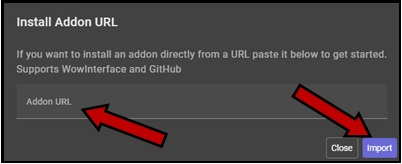
Open the WoWUp app. Click on “Get Addons” then “Install from URL”, paste one of the URL’s and click “Import”.
Repeat this step with the second URL and now both addons should be installed.

Step 4: Checking AuraUpdater and WeakAura Update Status
In game, type /au or click on the AuraUpdater icon on your mini-map to open the addon. You will see a blue screen with three options at the top. Click on Aura Check in the middle and it will display what, if anything, is out of date.
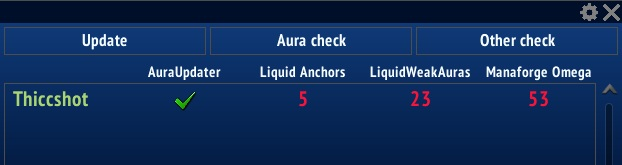
If there is a checkmark under AuraUpdater then proceed to the next steps. If AuraUpdater is out of date, you need to open up the WoWUp.io app, in the left menu click on “My Addons” then “Check Updates” in the top right corner and update the AuraUpdater addon and TimelineReminders addon as needed. Once updated, click on “Check Updates” again as sometimes multiple versions need to be installed sequentially. During RWF, sometimes there are updates being pushed out hourly – this is expected to level out within a few weeks.

Step 5: Updating Auras
Once you have confirmed AuraUpdater is up-to-date, open the menu in game again by typing /au. Click on Aura Check in the middle and look under the Liquid Anchors, LiquidWeakAuras and Manaforge Omega colums. If you see red numbers, your auras are out of date. Click on “Update” at the top left and go down the list, clicking update. Every time you click update the WeakAura addon will pop up – press “Import” at the bottom to update.
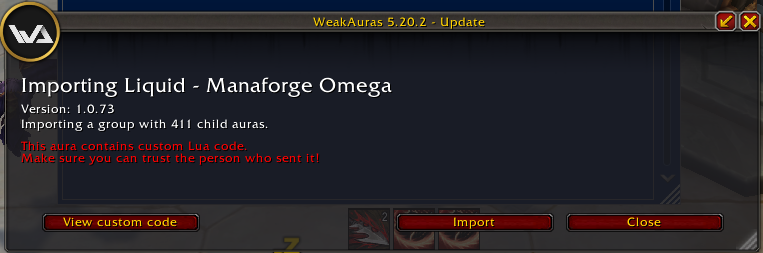
Now go back to the AuraUpdater addon and use the Aura Checker again. You should see 4 checkmarks which indicates you are fully up to date.
Trouble Shooting:
Some known errors that may occur include seeing that you are multiple versions out of date but when you click the “Update” button in AuraUpdater, nothing happens. After trying each step below, make sure to /reload in game before checking your Aura’s again.
- Check WoWUp.io and ensure that you have a Personal Access Token entered. (Options > Addons > Look in the lower right corner). If you see a bunch of asterisk “***************” then you have a code entered. If you see a blank field, go to Discord and grab the Personal Access Token as described in Step 2 above.
- If your Personal Access Token is good – click on “My Addons” then “Check Updates” to see if AuraUpdater has pushed out a last minute update. Update as required.
- In the rare case that WoWUp.io is having an issue updating your AuraUpdater and TimelineReminders, you may have to manually download and install the latest version. If this happens, the .zip files will be posted in the Blood Omen Discord under the Raid-Team-Stuff channel. Download the .zip file, open it and then copy the folder into your WoW Directory. Mine is “C:\Program Files (x86)\World of Warcraft_retail_\Interface\AddOns” but yours may be different. When you unzip the folder into your addons folder, you will be prompted about duplicate files. Make sure you click “Replace All”.
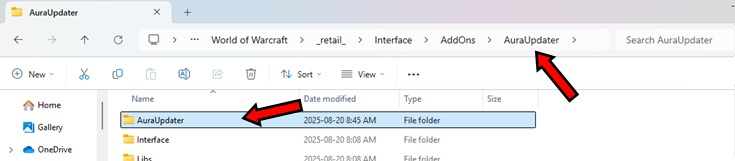
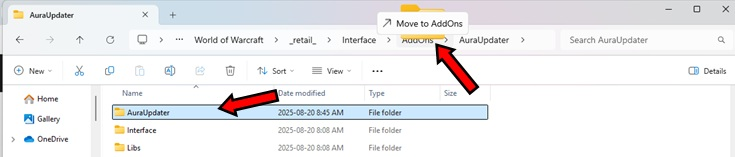
- Sometimes when you unzip a file to a directory, it makes a duplicate folder inside of itself. Example: The folder may unzip as AddOns\AuraUpdater\AuraUpdater\ and then put the files here. If this happens, click on the duplicate folder and drag it into the parent folder.